Every job on one page, from bid to closeout
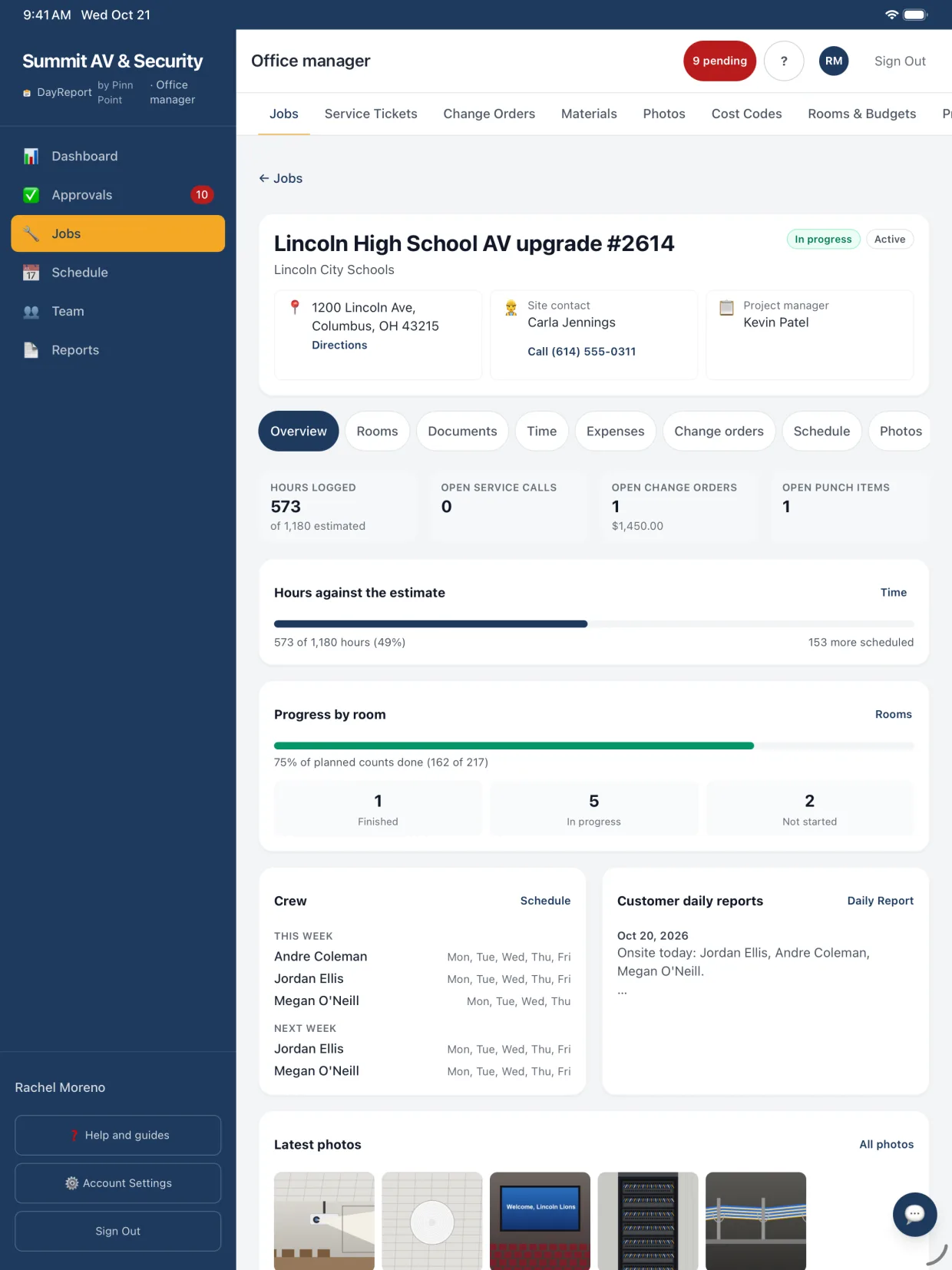
Open a job and see hours against the estimate, room progress, who is on it this week, and warnings like Over budget and Past the end date while there is still time to fix them.
7 day free trialNo card to startAdmins and office staff free
Screens show example data.
- Built by a working integrator
- 7 day free trial, no card
- Admins and office staff free
- Data stored in the United States
The job page tells you what needs a look
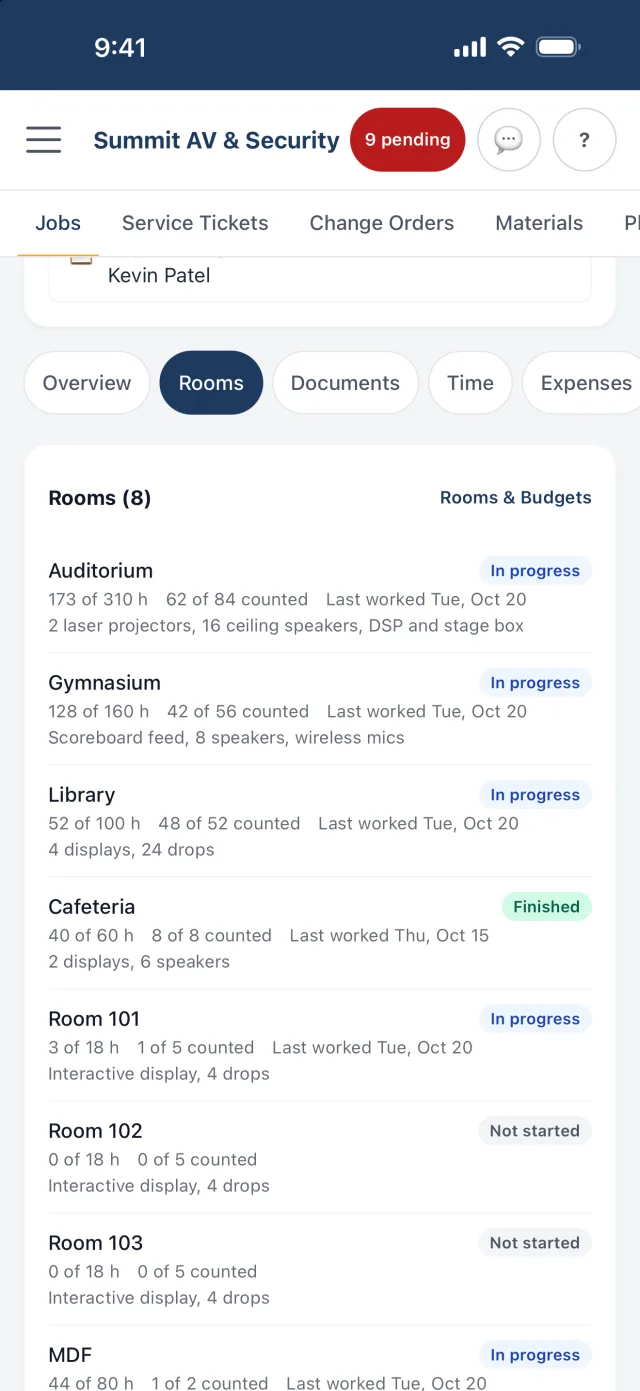
Jobs, then tap a job name. The Overview shows hours against the estimate, room progress, who is on it this week and next, open calls and change orders, and the latest reports and photos. Tabs cover Rooms, Documents, Time, Expenses, Change orders, Schedule, Photos, Punch list, Closeout, Notes, Money and Share.
- Warnings for Over budget, On track to go over, No activity, Past the end date and Open punch items.
- Stages: Bid, Awarded, Scheduled, In progress, Punch list and Closed out. Filter the Jobs list by stage.
- Upload a work order or scope in Auto-fill from a document and the new job fills itself in.
Cost to date and margin while the job is still running
The Money tab shows the contract and change orders, cost to date, margin so far, percent complete against budget used, and a projection at completion.
- Labor at each person's hourly rate plus your labor burden for taxes, workers comp and benefits.
- Materials at unit cost, plus expenses from receipts.
- A schedule of values by system for progress billing, with a CSV.
- Only admins and the roles allowed to see wages can open it.
| System | Value | Progress | Done |
|---|---|---|---|
| 27 10 00 Structured cabling | $62,000 | 71% | |
| 27 41 00 Audio-video | $54,500 | 38% | |
| 28 20 00 Video surveillance | $38,200 | 25% |
Punch items with a room, a photo and an after photo
Add a punch item with the room and a photo. The crew opens it from the job on My schedule and marks it done with an after photo, so nobody argues about whether it was fixed.
- Items stay tied to the job and the room.
- Open punch items raise a warning on the job page while it sits in Punch.
- The finished list goes into the closeout package.
A closeout package in one tap
The Closeout tab holds the checklist: as-builts, test results, labeling, backups, manuals, training, punch list, walkthrough and sign-off. When it is done, download the package.
- Closeout package PDF with the checklist, punch list, daily report history and a sign-off page.
- Closing out a job also marks it completed.
- The punch list and daily reports come from what the crew already logged.
| Closeout checklist | 9 items |
| Punch list | 23 items, all done |
| Daily report history | 38 reports |
| Sign-off page |
Give the customer a link instead of a phone call
On the Share tab, create a private link for the customer or GC and pick what it shows: room progress, daily reports and photos, with an optional end date.
- Anyone with the link sees only what you picked. Pay, names, notes and prices never show.
- Turn it off or delete it any time.
- The tab shows how many times the link was opened.
Everything else a job needs
Job notes with @mentions
A running thread between the office and the field on each job. Type @ to mention someone and they get a notice.
Start from a job
Copy the setup of a finished job, including rooms, budgets and planned counts, for repeat work.
Change orders and extra work
Techs flag extra work on Log time and pick the change order, or ask for a new one from the field. Send a priced change order to the customer as a private link to approve, and download the record as a PDF.
Service tickets
Service jobs hold numbered calls. Techs pick the ticket when they log time, so every call has its hours.
Prevailing wage and certified payroll
Mark a prevailing wage job, enter classifications with base and fringe rates, pick whether fringe is paid in cash or to plans, and download the weekly certified payroll PDF or CSV from approved time.
Documents on the job
Drawings, scopes and schedules live on the job. Techs on it open them from the truck, and the AI uses them for room names.
Forms on the job
The job's Forms tab lists the checklists and walkthroughs filled for it, and the crew starts a new one from there with Fill a form.
Job conversations
Start a group conversation with the people scheduled on a job, or post an announcement to them, from Messages.
Open shifts on a job
Post a day on a job that needs someone, and an eligible tech takes it from My schedule.
Questions people ask first
Who can see job money?
Admins and the roles your admins allow to see wages. Everyone else works with the job without the Money tab.
What does the customer see on a share link?
Only what you pick: room progress, daily reports and photos, with an optional end date. Pay, names, notes and prices never show. Turn the link off or delete it any time, and the Share tab shows how many times it was opened.
What goes into the closeout package?
The closeout checklist, the punch list, the daily report history and a sign-off page, in one PDF.
Can I copy a job for repeat work?
Yes. Add job, then Start from a job. The new job gets the old one's type, required certifications, estimate, notes and usual hours, and after saving its rooms, room budgets, planned counts and prevailing wage classification rates.
Can we delete a job by mistake?
A job with time, expenses or GPS shifts on it cannot be deleted, because payroll and billing need it. Set it to Completed or Cancelled instead. Only admins and office managers delete jobs; project managers add and edit them, and foremen never delete job information.
Can the customer approve a change order?
Yes. Send an open, priced change order from Jobs, then Change orders, and the customer gets a private link that works for 30 days without signing in. They see your company, the job, the number, the description and the price, then approve with their typed name or decline with a reason. DayReport keeps a record of what they saw and when they answered, and an approved change order is locked.
How much does DayReport cost?
$19 per technician or foreman per month. Admins, office managers, project managers and accountants are free unless you give one a field seat to log their own time. 7 day free trial, no card to start.
Keep exploring
Try it on your next job
Set up your company, invite a technician and log a real day. Setup takes about ten minutes, and the first 7 days cost nothing.
No card to startAbout ten minutes to set upCancel any time